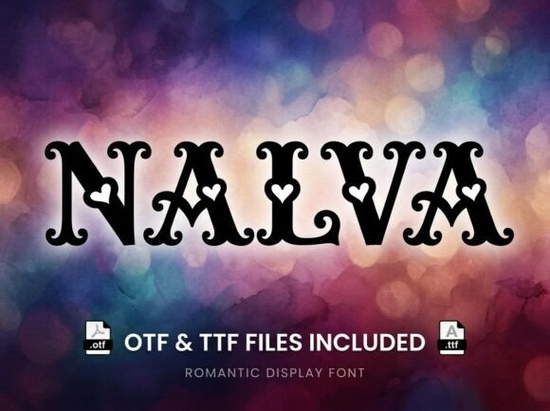
Finding the right typeface for high-end packaging or fashion editorials requires a careful balance of readability and visual impact. The Nalva Font delivers exactly that through its high-contrast lines and refined proportions. Designed specifically for formal appearances, this display typeface helps small businesses, print-on-demand sellers, and graphic designers create sophisticated brand marks without needing to hire a custom lettering artist. When you want your product to look expensive and meticulously crafted, the typography you choose carries a lot of weight.
What makes this typeface work for luxury branding?
Designers often look for sharp, clean lines when building visual identities for premium products. This typeface relies on dramatic weight differences between thick and thin strokes. These high-contrast lines naturally catch the eye on physical packaging, business cards, and digital storefronts alike. Because it leans toward a strict, formal aesthetic, it pairs beautifully with minimalist layouts and plenty of negative space.
If your current project requires something slightly more relaxed instead of strictly formal, you might want to look at alternatives like a handwritten display style to soften the overall mood of the brand. However, for cosmetics, jewelry, or high-fashion labels, keeping the lettering refined and structured communicates quality to the customer.
Which file formats are included and how do you use them?
When you acquire the files, you receive two standard formats to ensure compatibility across different operating systems and design programs.
- OTF (OpenType Font): This is the recommended format for professional design suites like Adobe Illustrator, Photoshop, or InDesign. It is built to handle advanced typographic features and complex rendering.
- TTF (TrueType Font): This is the standard format for general software installation. It works perfectly in everyday programs like Microsoft Word, Canva, and crafting software like Cricut Design Space.
Having both formats means you can design a complex logo in professional software and then easily apply the exact same branding to a whimsical storybook project using basic, beginner-friendly crafting tools.
Can you use an uppercase-only font for everyday text?
One crucial detail to know before downloading is that this typeface includes uppercase characters only. It does not feature lowercase letters. While this might seem limiting at first glance, uppercase-only fonts are actually ideal for specific, high-impact design tasks.
They work best for wordmarks, main titles, and decorative initials where you want maximum visual weight. You would not use this for long paragraphs of text or detailed product descriptions. The lack of lowercase letters forces the design to remain a focal point. For longer editorial content, pairing it with a highly legible serif or a technical typeface like a monospaced coding style creates a striking visual hierarchy. You could also pair it with a classic serif alternative for traditional body text to maintain an elegant, editorial feel throughout the page.
How does it fit into a broader design toolkit?
Building a versatile font library means collecting typefaces that serve distinct, specialized purposes. This elegant option handles the luxury, fashion, and formal event niches perfectly. Every designer and print-on-demand seller needs this kind of variety to meet different client demands.
You might use this for a high-end cosmetic label or a wedding invitation, but switch to a rugged western-inspired lettering for an outdoor apparel brand or a rustic coffee shop logo. Understanding when to use high-contrast formal letters versus other stylistic choices helps you deliver exactly what your target audience expects to see.
What are the best practices for installation and testing?
Before finalizing your brand identity or sending a file to the printer, run through this quick testing checklist to ensure your design translates well across all mediums:
- Install the OTF file if you are using Adobe Creative Cloud, or the TTF file for Cricut and Silhouette machines.
- Type out your brand name or main title in all caps to check the spacing between specific letter combinations.
- Adjust the manual kerning if necessary, paying special attention to letters with diagonal strokes like A, V, and W.
- Print a physical test page to see how the high-contrast thin lines hold up on paper, especially if you plan to use it for small product packaging.
- Pair the uppercase headings with a clean, simple sans-serif font for your subheadings and body paragraphs to maintain readability.
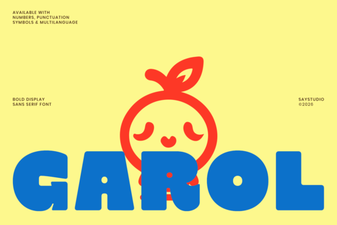 Garol Font: Creative Typography for Modern Design
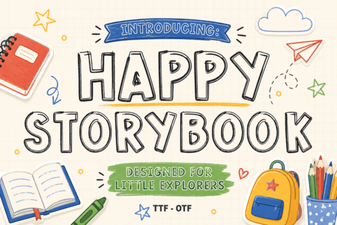 Happy Storybook Fonts for Readable, Joyful Designs
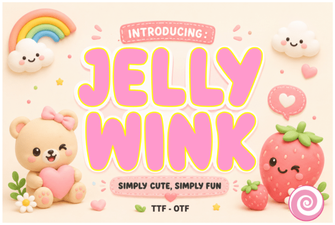 Jellywink Font: a Creative Web Typography Choice
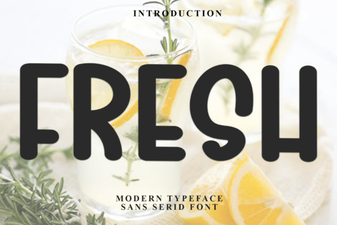 Fresh Font Inspiration for Modern Designers
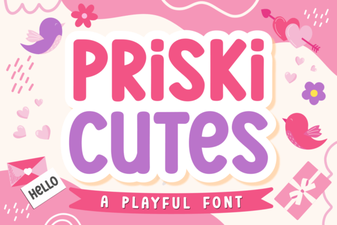 Priski Cutes Font for Projects & Design Inspiration
 Heart Monograms: Elegant Fonts for Personal Projects